
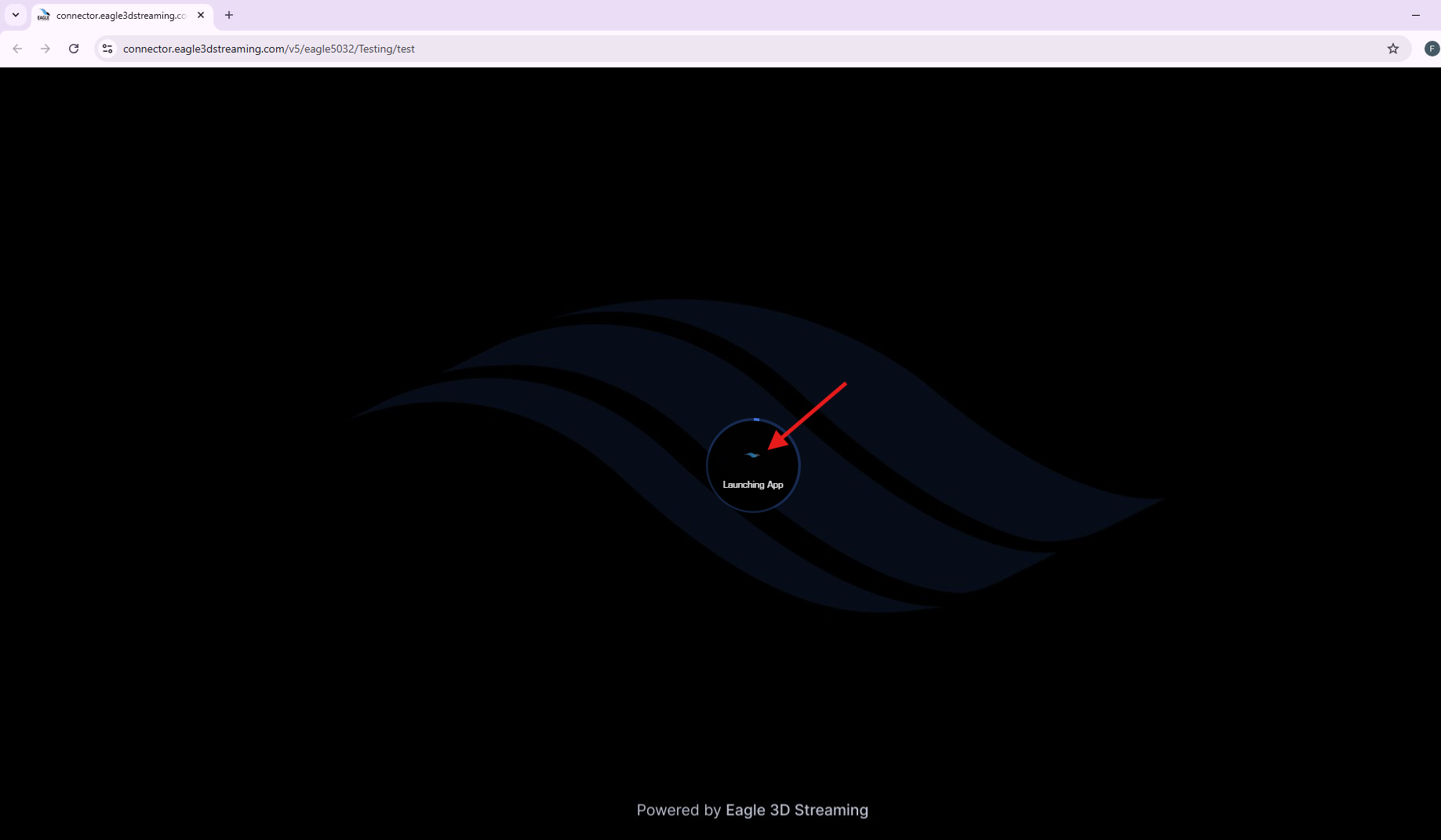
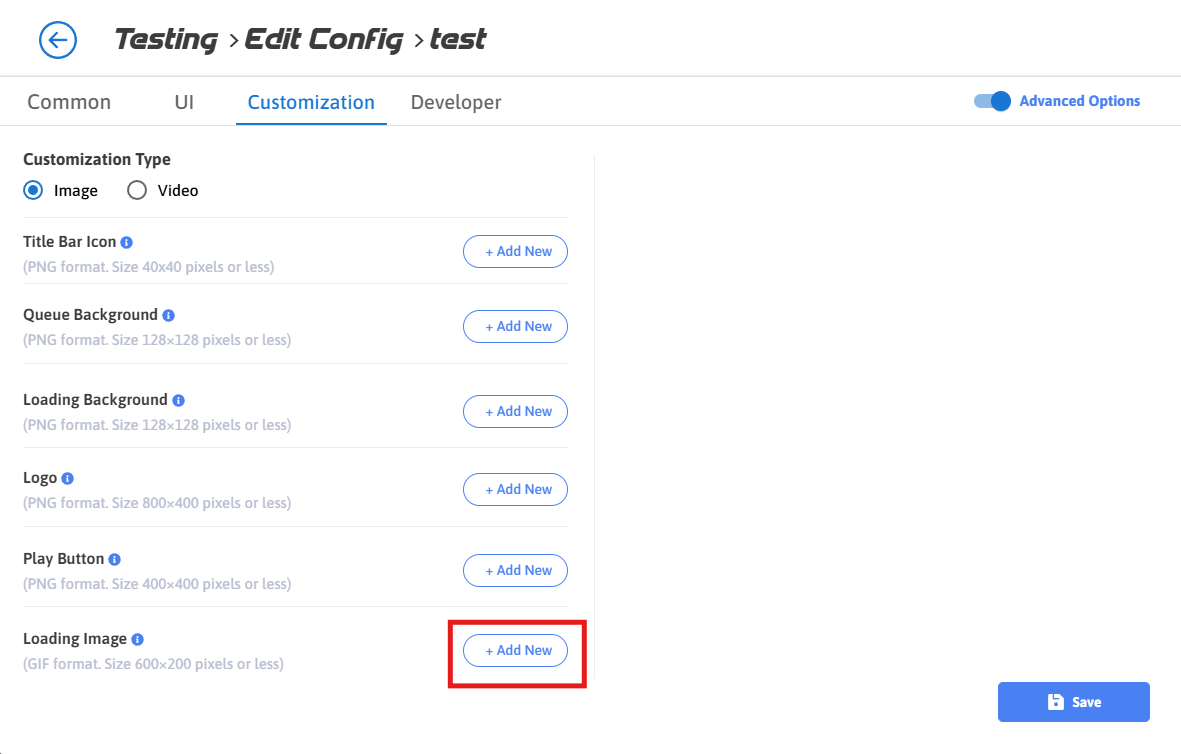
Follow the steps below to customize loading image:
Step 1. Select Add New
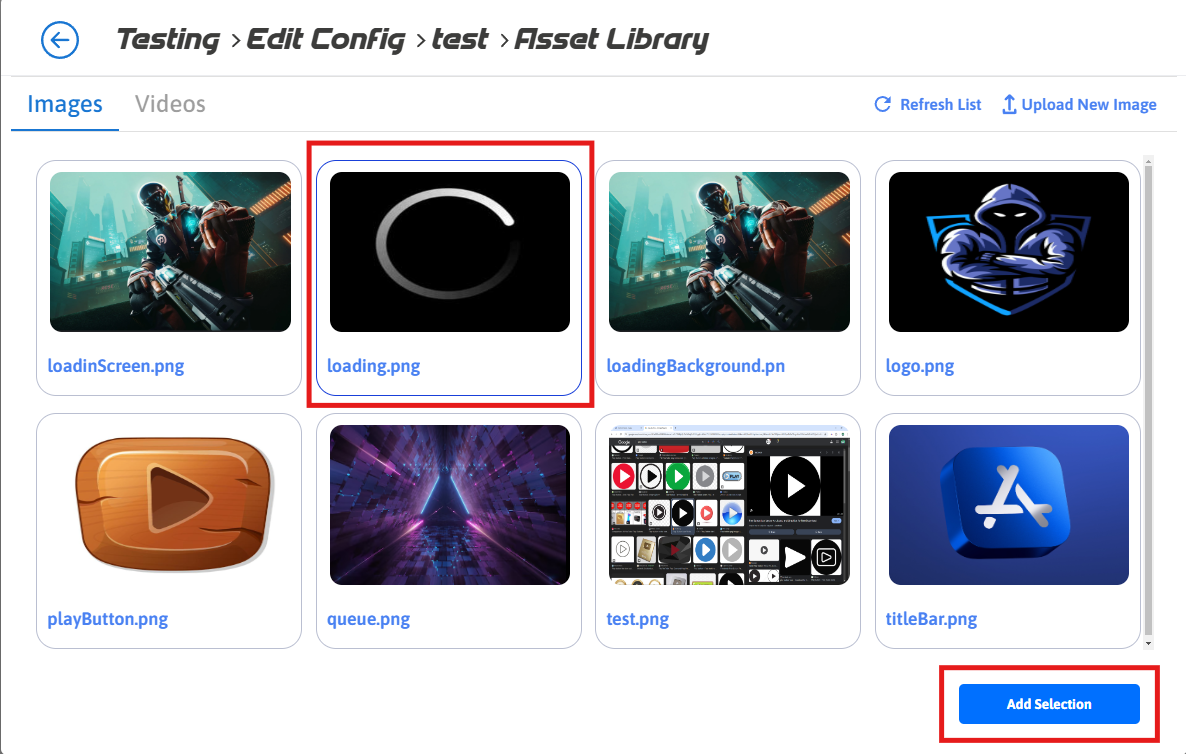
Step 2. Select the Image that you want to set as Loading Image and press Add Selection button.
If you want to upload new image, follow Upload 2D Assets Section
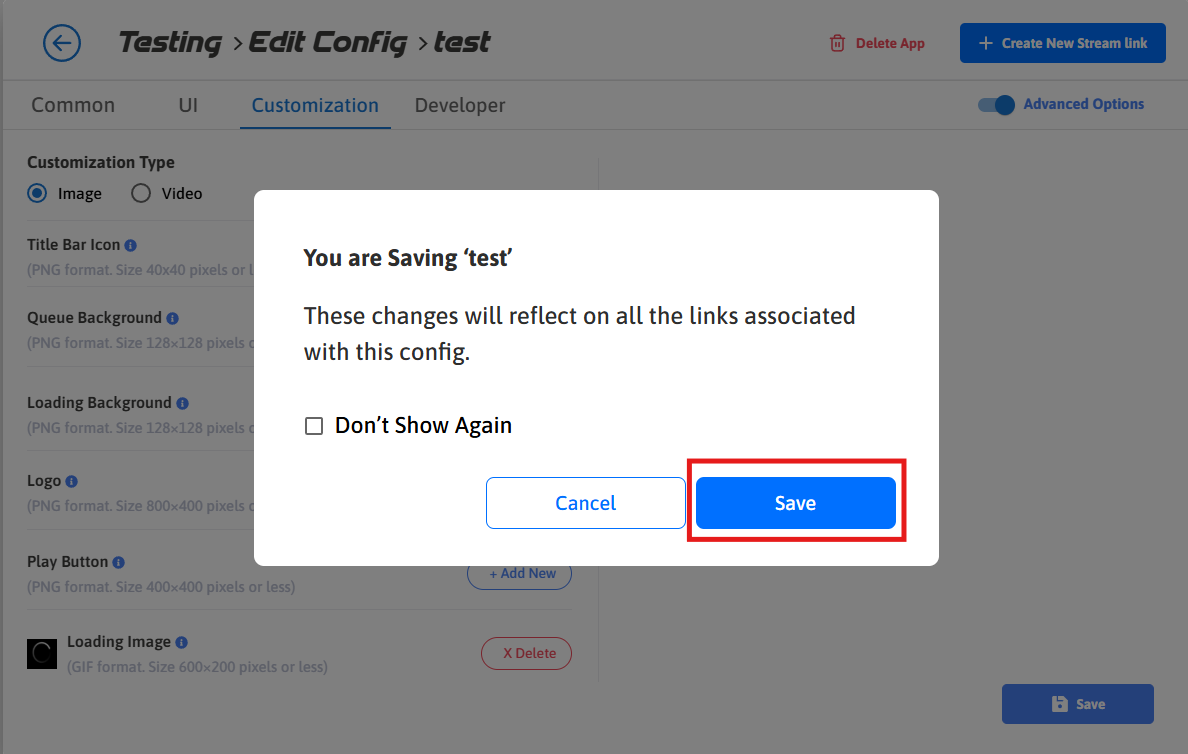
Step 3. Click Save
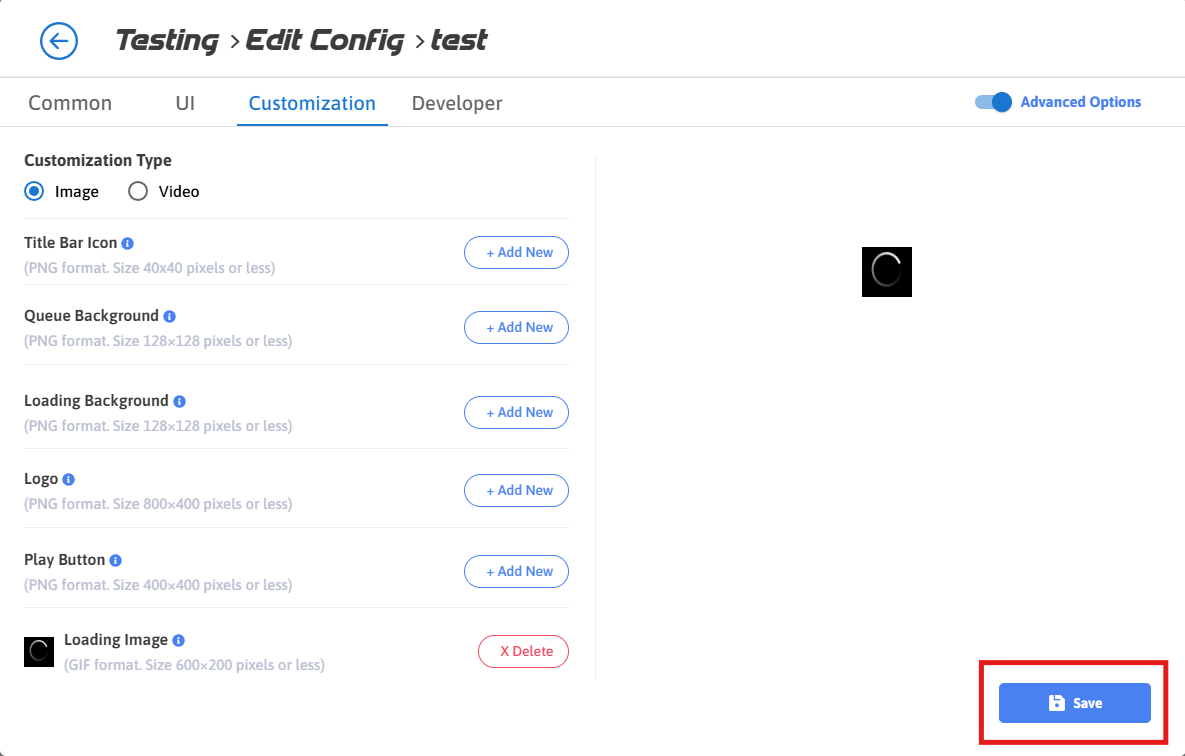
Step 4. Click Save
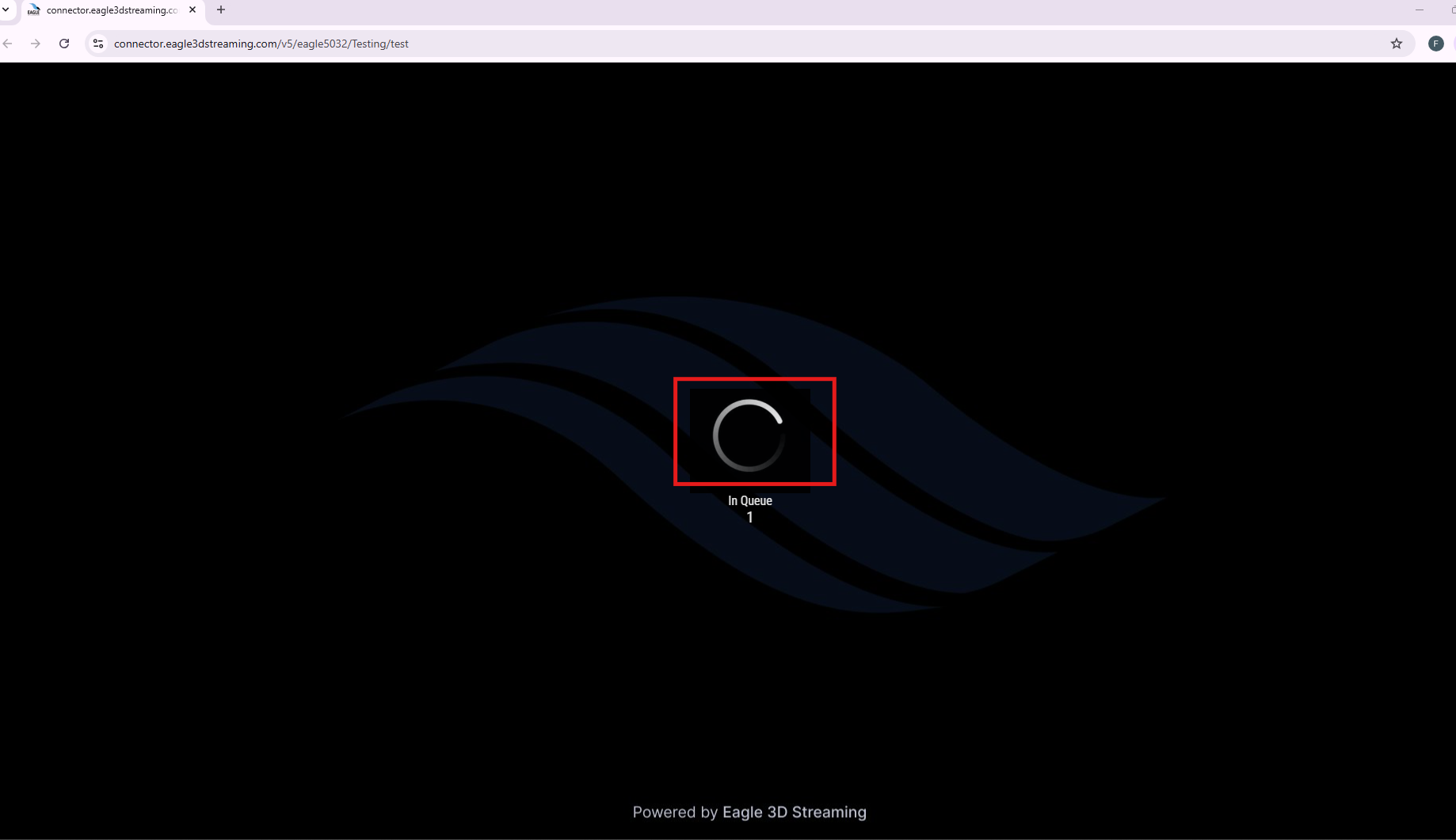
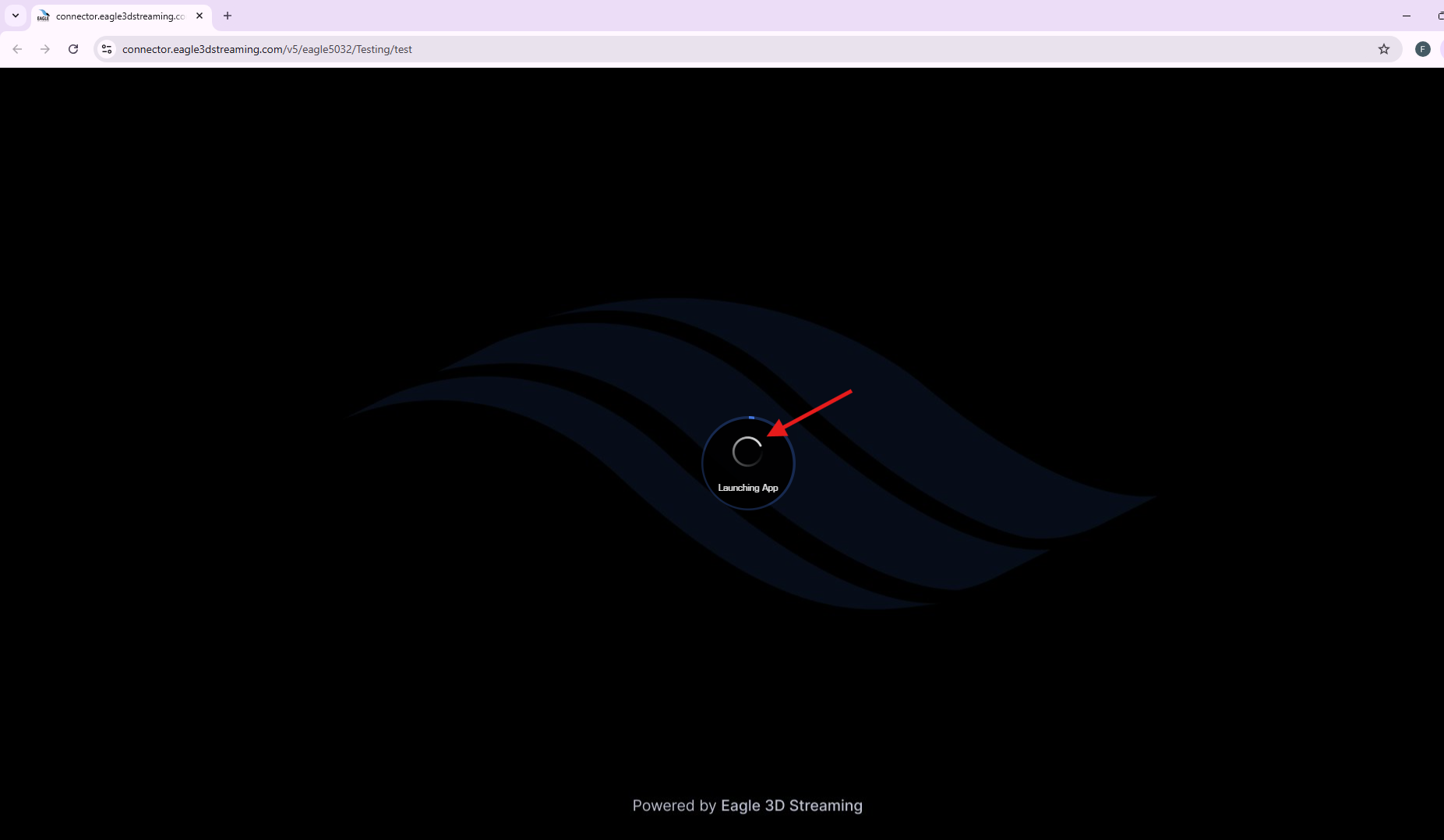
Step 5. Stream the app to view the customized Loading Image.
Need help?
If you need any assistance, feel free to reach out through any of the following channels:
🛠️ Support Portal: Contact Our Support Team
💬 Discord Community (Faster Support): Join Our Discord Community
📧 Email Support: support@eagle3dstreaming.com
Follow us on:
Facebook | GitHub | LinkedIn | YouTube